Getting Started on ISSINE eTires: Vendor Account Setup
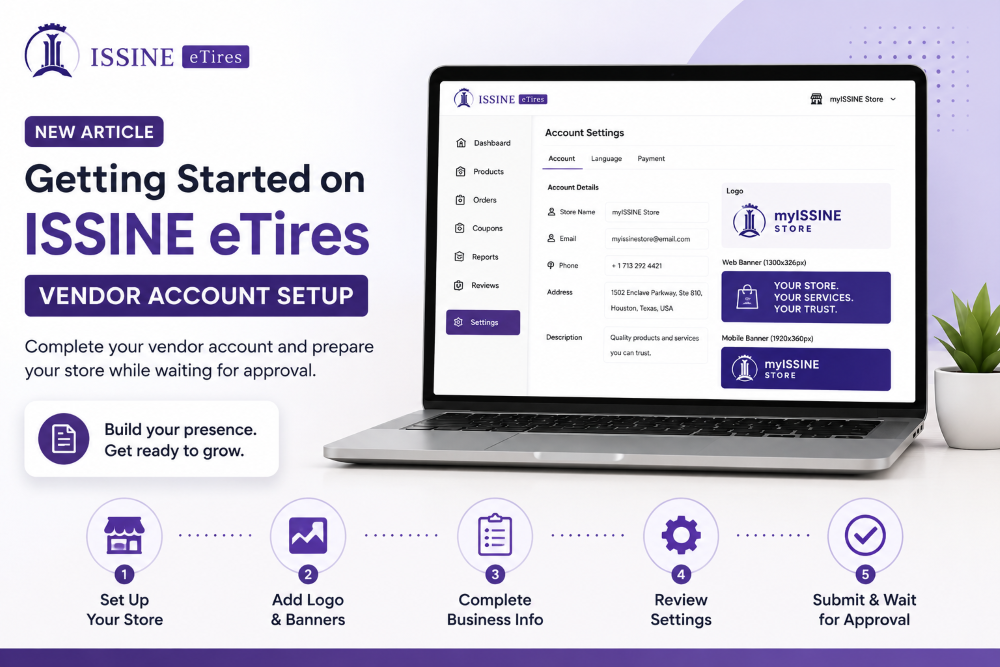
Your Vendor Account is created. What should you do while waiting for approval?
Once your ISSINE eTires Vendor Account has been registered, it is submitted for administrative review. While your account is being reviewed, use this time to complete your business profile and prepare your online presence.
Complete Your Vendor Account
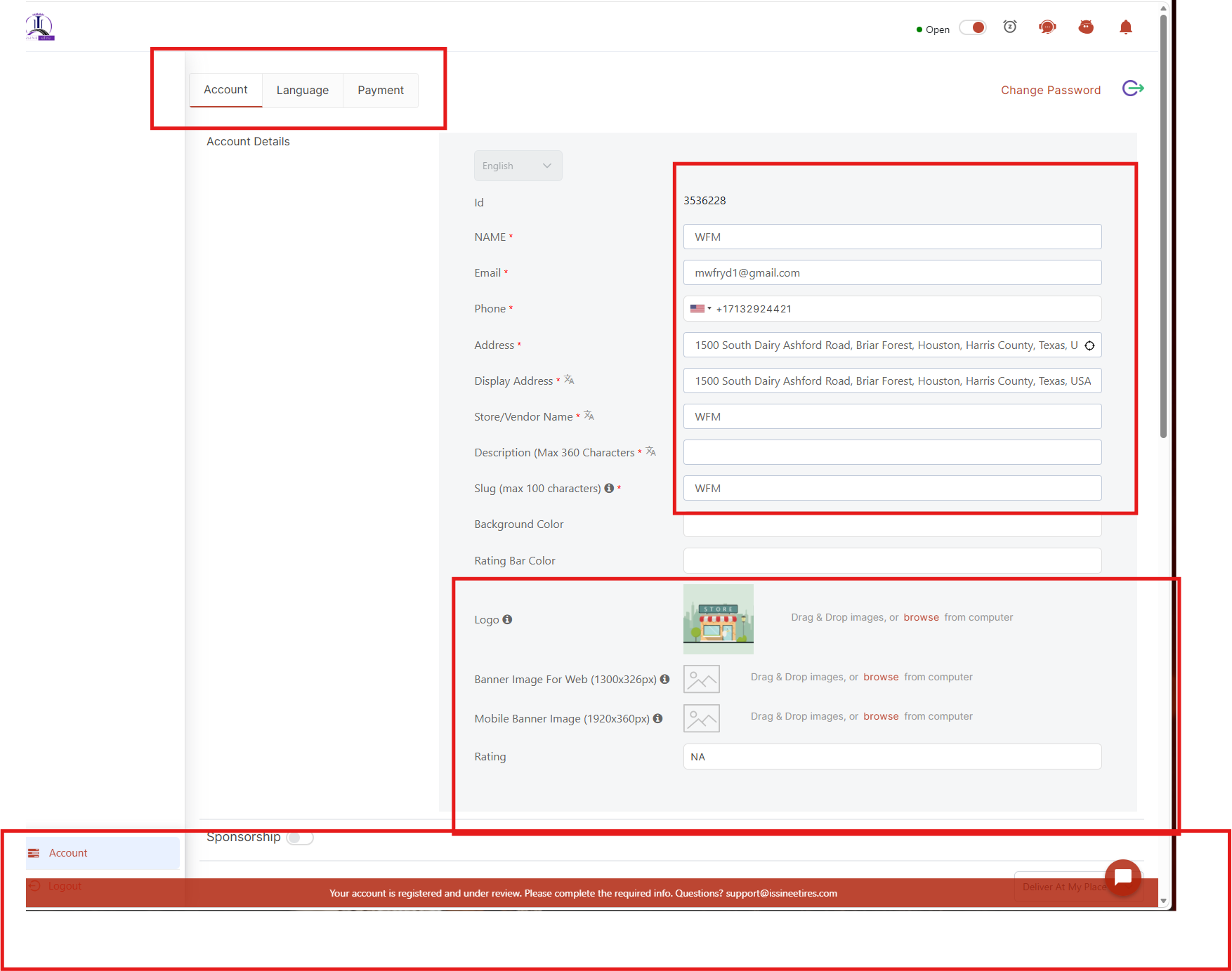
Verify your business name, email and phone number
Confirm your business and display address
Add a clear business description
Upload your business logo
Upload your Web Banner, 1300 × 326 px
Upload your Mobile Banner, 1920 × 360 px
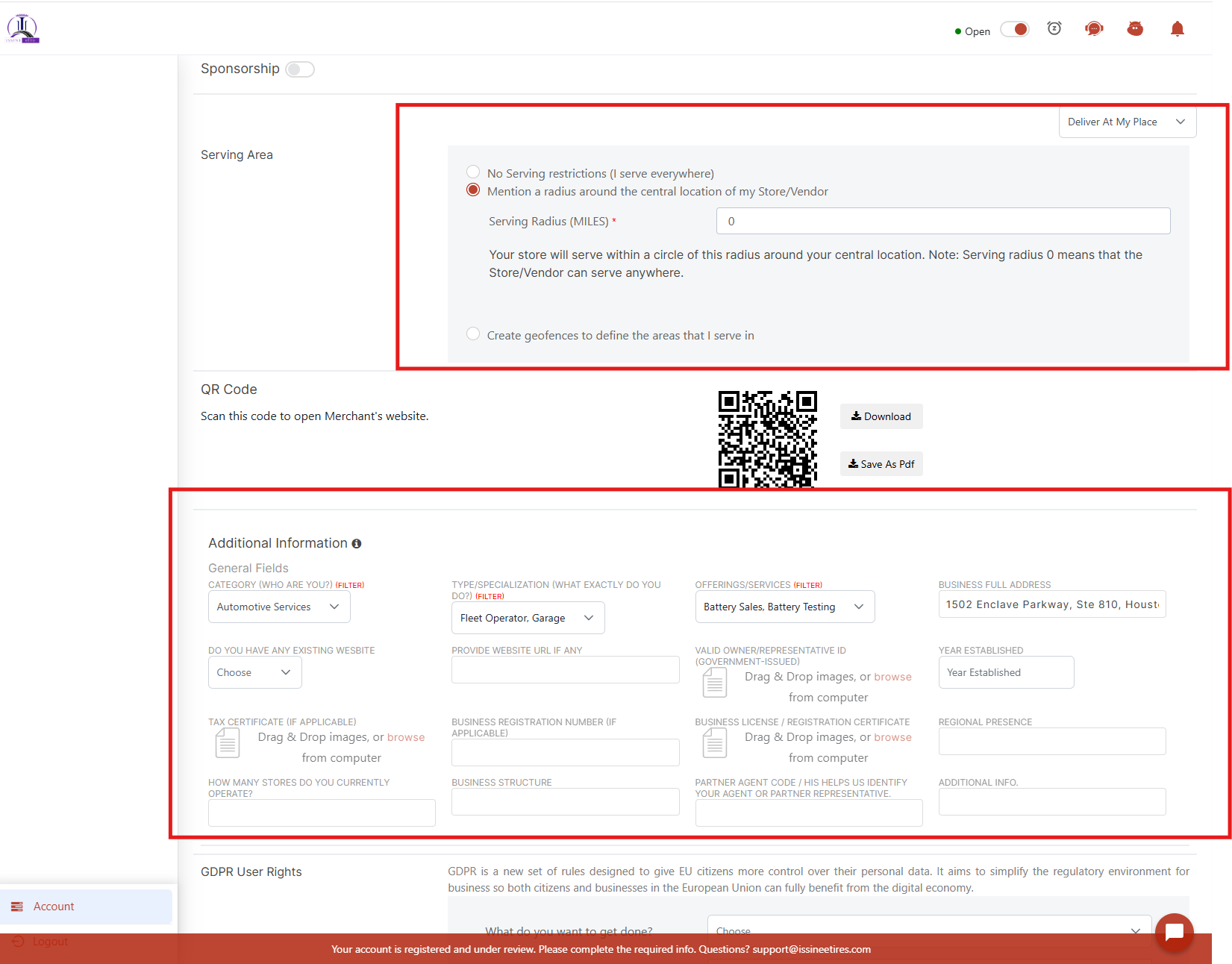
Select your business category and specialization
Select the products and services you provide
Add your website, if available
Complete your business and registration information
Add your regional presence and other relevant details
Select your preferred dashboard language
Review the Payment section
Why It Matters
Your Vendor profile is part of your digital presence on ISSINE eTires. Complete and accurate information helps us review your account while preparing your business to be properly presented within the platform.
What Happens Next
Once your account has been reviewed and approved, you can continue setting up your Vendor presence, products and services and begin using the available ISSINE eTires marketplace capabilities.
Vendor Value
Complete your profile. Strengthen your online presence. Get ready to connect with the automotive marketplace.
Need assistance with your Vendor Account setup?
ISSINE eTires
Connecting Drivers. Empowering Automotive Businesses.
9
Views
0
Likes
0
Comments
0 Comments
No comments yet. Be the first to comment!